TIME ZONES & CONTROL · ENGLISH EDITION
Live-room time zones after the 2026 clock changes: a practical guide
Convert a live-room schedule using its date and named time zone. Worked Berlin–New York examples and a reminder checklist for autumn 2026.
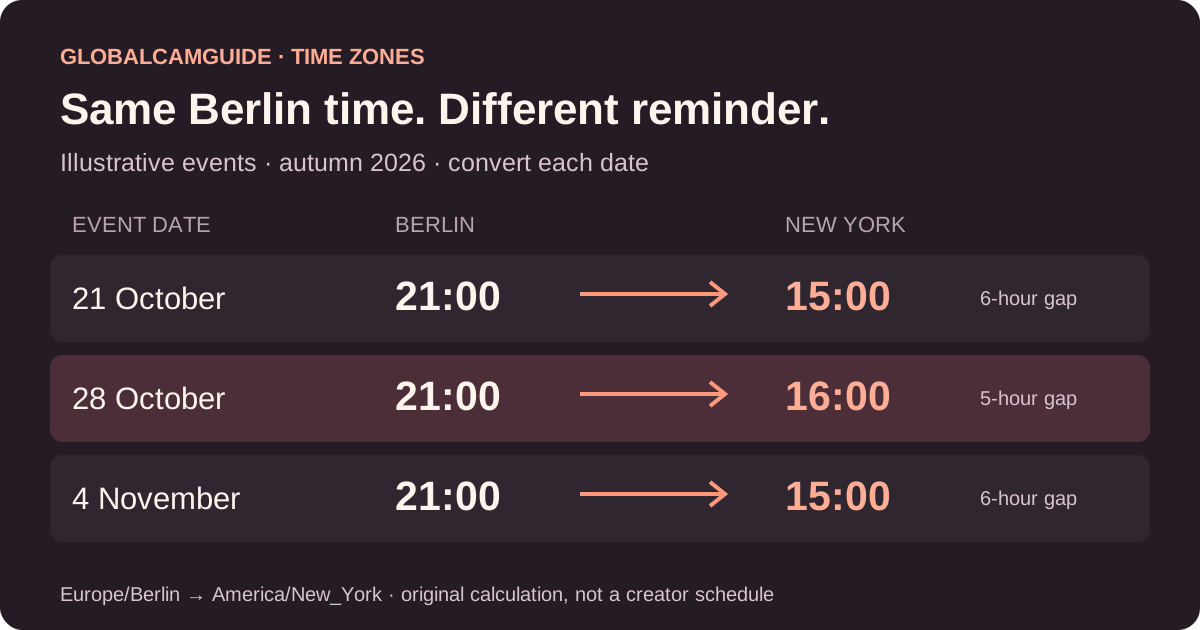
To convert a live-room schedule, use the event’s date, the creator’s stated time zone and your own time zone together. A fixed “add six hours” shortcut can fail around clock changes. After the autumn 2026 changes, recheck saved reminders before assuming a creator has changed their routine.
Early November is a useful moment to tidy a watchlist. Some clocks changed in late October, while others changed on 1 November. This is a practical seasonal guide for adults who follow international live creators, rather than a claim that any platform has introduced a new scheduling feature. It applies to a public schedule, a community stream or any appointment across time zones.
Why a familiar schedule can move by one hour
The Council of the EU’s seasonal clock-change reference says EU countries return to standard time on the last Sunday in October. In 2026 that was 25 October. Its page is an archived reference, last updated on 20 August 2026; the seasonal calculation here is ours. NIST’s 2026 daylight saving time rules give 1 November as the US end date in places that observe the change.
Those different dates created a one-week mismatch. Consider an illustrative creator who consistently publishes a 21:00 Berlin schedule. A viewer in New York needed a different local reminder on 28 October than on 21 October. Once New York changed its clocks, the usual six-hour gap returned. The creator could keep exactly the same local routine throughout.
| Date in 2026 | Berlin | New York | UTC |
|---|---|---|---|
| 21 October | 21:00 · UTC+02:00 | 15:00 · UTC−04:00 | 19:00 |
| 28 October | 21:00 · UTC+01:00 | 16:00 · UTC−04:00 | 20:00 |
| 4 November | 21:00 · UTC+01:00 | 15:00 · UTC−05:00 | 20:00 |
These are independently calculated examples using the named zones Europe/Berlin and America/New_York, not actual performer availability. They illustrate why a date matters as much as an hour. Other city pairs can behave differently, particularly when one location does not change clocks.
Check what the displayed time actually means
Start with the label beside the schedule. Does it name a city, show UTC and an offset, say “your local time”, or provide no zone at all? A translated interface does not answer this question: reading a page in German does not establish that the schedule uses Berlin time. A creator’s preferred language also does not establish their location.
If the schedule is already converted into your local time, converting it again creates a second error. Compare the displayed label with your device’s zone setting and any explanation provided by that particular platform. When the label is missing, treat the time as unconfirmed and ask through the platform’s normal public channel. Avoid trying to infer someone’s private address or whereabouts from their posting hours.
For the wider context, our 25-insight guide covers room conventions, profiles, mobile use and privacy. The language directory offers those existing guide editions. This article is published in English; the directory does not imply that translations of this article exist.
Make one reminder you can understand later
- Copy the full event date. Write the month in words if a numeric date could be read two ways. Include the year when saving a future appointment.
- Record the source zone. A named city such as Berlin is clearer for recurring events than a permanent “UTC+1” note, because a city’s offset can change.
- Convert that specific occurrence. Use a calendar or world-clock tool that accepts the event date and both named zones. Check the resulting calendar date as well as the hour.
- Keep the original reference. Add the public schedule URL to a private note, then recheck it before attending. A reminder is a planning aid, not confirmation that a stream will happen.
An illustrative note could read: “4 November 2026, 21:00 Europe/Berlin; 15:00 America/New_York; check the public profile before opening.” If you travel, revisit the calendar’s zone behavior. A reminder intended to follow your current location and one intended to remain at a fixed clock hour are different choices.
Separate language, time and notifications
Language preference, schedule conversion and notification permission solve separate problems. Choose a language you can read, confirm the event’s time basis, and then decide whether a notification is useful. A permission request is not necessary for reading a static schedule or making your own calendar note.
On a shared device, use a neutral reminder title and review lock-screen previews if you want discretion. Keep account names, payment information and private messages out of screenshots shared for scheduling help. You can explain the problem with two city names, a date and an hour; no creator identity is needed.
A quick check when a creator appears “late”
Reopen the current public schedule, confirm the date and zone, and compare your reminder with a fresh conversion. Check whether you saved a recurring fixed offset during the mismatch week. If the arithmetic still matches, availability may simply have changed. A schedule does not guarantee a start time or justify pressure on a creator to explain personal circumstances.
The useful habit is small: reconfirm the date, the named zone and the current schedule together after seasonal clock changes. It prevents a calendar mistake from becoming an assumption about a person or a platform.